
Replace the background
Move a product from a busy setting to white, colored, lifestyle, or seasonal scenes while keeping edges and contact shadows believable.
Product photography, directed by you
Turn one clean product shot into marketplace listings, campaign images, and catalog-ready crops. The JoyAI Image editor follows natural-language instructions while keeping the product recognizable.
Precise product edits
Use the editor for focused changes instead of rebuilding a shoot. Describe the result, protect the details that matter, and adapt one source image to more sales contexts.
Move a product from a busy setting to white, colored, lifestyle, or seasonal scenes while keeping edges and contact shadows believable.
Direct local edits to labels, colors, small objects, and visible copy without redesigning the entire composition.
Extend the canvas and reframe product photos for square listings, portrait ads, wide banners, and consistent catalog layouts.
Across product categories
The editor should support the image you already have. Start with a clear source, then direct the background, lighting, crop, and supporting props for each channel.
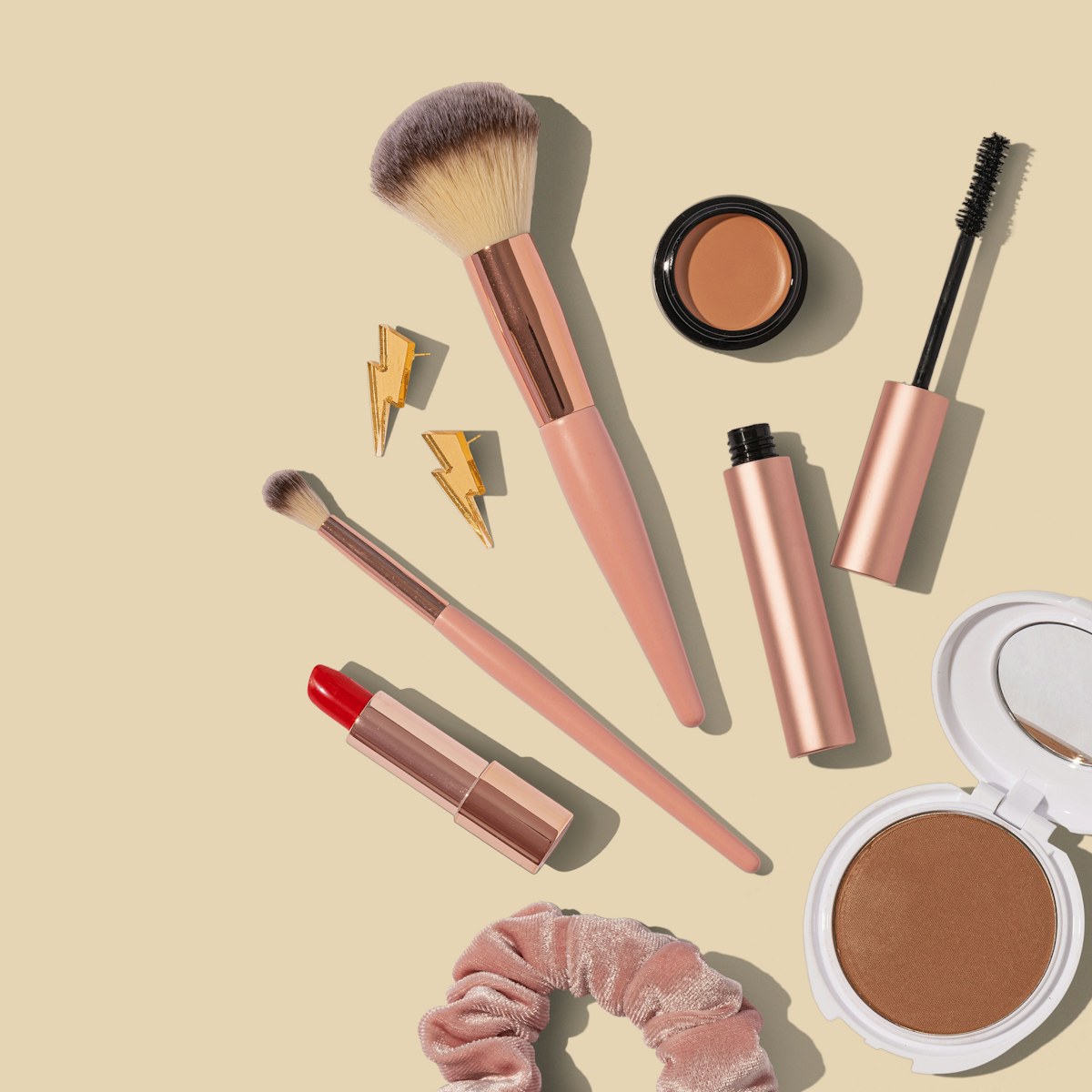
Beauty
Simplify the surface, adjust the palette, remove distracting props, or create a coordinated seasonal treatment without losing product texture.
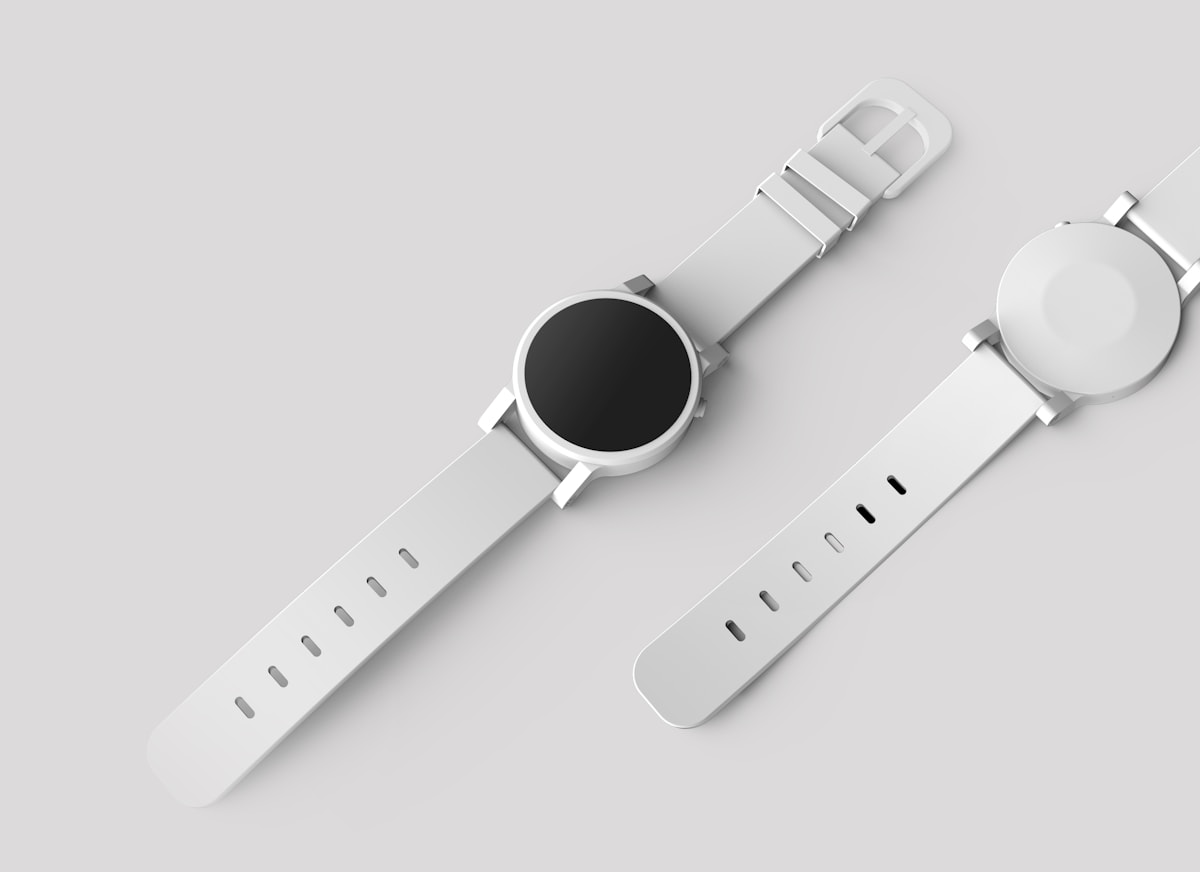
Accessories
Preserve shape and material while changing the set, adding controlled reflections, or preparing clean marketplace variations.
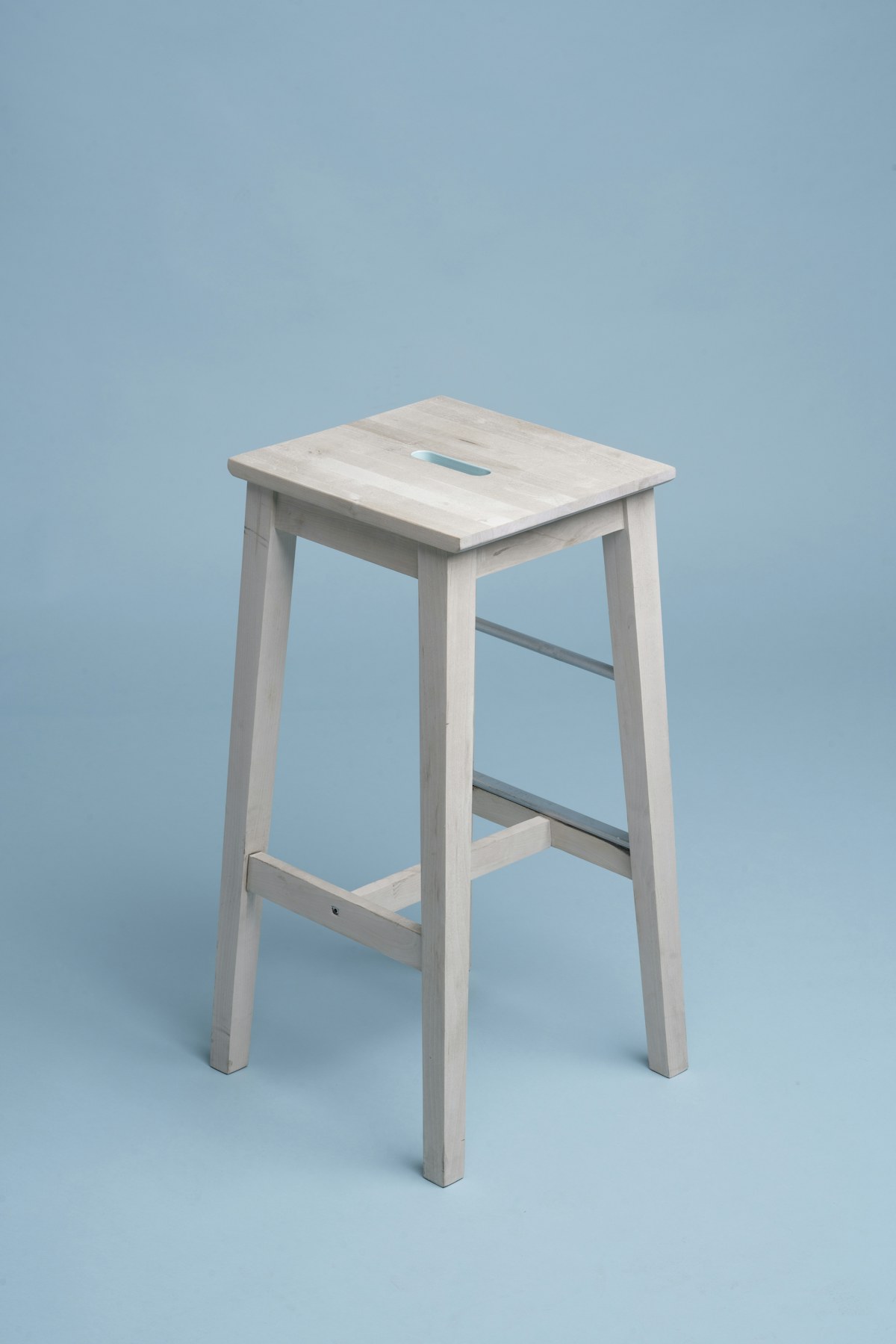
Home
Replace a studio color, extend negative space, or stage a simple item in a new room concept while retaining proportions.
Simple workflow
JoyAI Image keeps the workflow direct: bring a strong source image, write one controlled instruction, and refine only what needs to change.
01
Choose a sharp photo with visible edges, readable packaging, and enough resolution for the final sales channel.
02
Name the exact change and the exact details to preserve, such as product shape, logo placement, color, camera angle, and shadow direction.
03
Check labels, edges, materials, scale, and lighting. Make a smaller follow-up edit when one area needs correction.
Prompt recipes
Good product-photo prompts separate the requested change from the details that must remain fixed. Use these starting points, then name your product and channel.
Useful for marketplace thumbnails and product detail pages.
Useful for a new campaign without reshooting the product.
Useful when a square source needs space for campaign copy.
One source, more placements
Use the editor to adapt a source image to different commercial contexts without making every output look like the same template.
Prepare clean backgrounds, consistent framing, and detail-focused images for product grids and listing pages.
Create seasonal sets, portrait crops, and visual room for headlines while preserving product identity.
Align color, scale, spacing, and background treatments across a collection so customers can compare products quickly.
Built for controlled iteration
JoyAI Image combines instruction-based editing with a focused product workflow. It is designed for teams that need useful variations without giving up control of the source image.
Tell the model which geometry, packaging, logo placement, texture, and color must stay consistent across an edit.
Direct background, lighting, props, crop, and local corrections without building masks or a complex node graph.
Start with a prompt here, open the JoyAI Image workspace, upload your source, and continue the same editing task.
Common questions
Practical answers for ecommerce teams, creators, and catalog managers evaluating an AI product photo editor.
This type of editor uses text instructions to change backgrounds, lighting, crops, props, or local details in an existing product image while preserving the main subject.
Yes. Ask for a white studio, a specific color, or a lifestyle setting, and state that the product edges, scale, camera angle, and shadow must remain consistent.
Clear source images and explicit preserve instructions improve consistency. Always review geometry, packaging, labels, and small hardware before publishing.
You can request local text and label changes, but typography needs careful review. Compare every character with the approved packaging file before commercial use.
No advanced masking workflow is required. Describe the change in plain language and include what the tool must not alter.
Use sharp, well-lit images with visible boundaries, minimal motion blur, and enough resolution for your target marketplace, ad, or catalog crop.
Yes. It can help create clean backgrounds and consistent crops, but you should still check the image rules for each marketplace.
Name the requested change first, then list invariants such as product shape, label, logo, colors, angle, material, and contact shadow.
Use outpainting instructions to extend a canvas for square, portrait, or wide placements while keeping the source product anchored in the composition.
JoyAI Image is free to try. Generation limits, account requirements, or credits may apply to workspace features.
Review JoyAI Image terms, your source-image rights, trademarks, and marketplace rules before publishing any edited commercial asset.
A generator starts from a prompt. Product photo editing starts from your existing image and focuses on controlled changes around or within it.
Create your next product image from the photo you already have
Start with a focused instruction, then upload your source in the JoyAI Image workspace.